Blog
Programs and the Operating System
What happens when you press the power button? Part 6 follows a laptop from its reset vector through the firmware, boot loader and kernel, then shows how an operating system loads programs, gives each its own memory and shares one processor in time slices.
 Tan Kok XinHow a Computer Works
Part 6 of 13 in Cobler's How a Computer Works course. New here? Start with the course map.
It's just after 8 on Monday morning in our Kuala Lumpur office tower. The facility manager's laptop was shut down on Friday (most mornings it would only wake from sleep), so today it starts from nothing. They press the power button, and a few seconds later there's a desktop, then a browser, then the CobiNeural dashboard with the night's alerts. So how does an operating system work, and what gets the very first instruction running?
That second question is the one Part 5 left us with. Our toy processor only ran the damper program because we'd already put it in its memory. The laptop's RAM forgot everything when the power went off on Friday (Part 4), so at 8:04 there's no list in it at all. Well, let's start at the button and see where the first instruction comes from.
Power on
When we press the button, the power supply brings up the laptop's voltages, and a small circuit holds the processor in reset until they're steady. Then it lets go. Now the processor has to fetch its first instruction from somewhere, and the program counter can't just happen to hold the right address. So the chip's designers build one in. Coming out of reset, the program counter always holds the same address, fixed in the chip's design, and we call that address the reset vector.
Now remember slots 14 and 15 of the toy in Part 5, which led to the damper and the CO2 sensor instead of to memory. Not every address has to lead to RAM, and the laptop uses the same trick here. Its board is wired so that the reset vector lands on a small flash chip, a kind of memory that keeps its contents with the power off (Part 9 shows how). That chip holds a program called the firmware, which on most PCs goes by the name UEFI, or the older name BIOS. So the very first instructions the processor runs are already sitting at the address it's built to start from. (Many modern chips first run a tiny program built into the processor itself, which checks that the firmware hasn't been tampered with, but the idea is the same.)
Booting
The firmware checks that the memory and the other hardware are there, then looks on the drive for a small program called the boot loader. It copies the boot loader into RAM and jumps to it. The boot loader does the same thing one size bigger. It finds the core of the operating system, called the kernel, copies that into RAM, and jumps to the kernel's first instruction.
So each program loads a bigger one and hands over. People call this booting, from the old phrase about pulling yourself up by your own bootstraps. And the jump itself is the same JUMP as in Part 5, writing a new address into the program counter. The only difference is that the address now points at numbers that were sitting on the drive a moment ago.
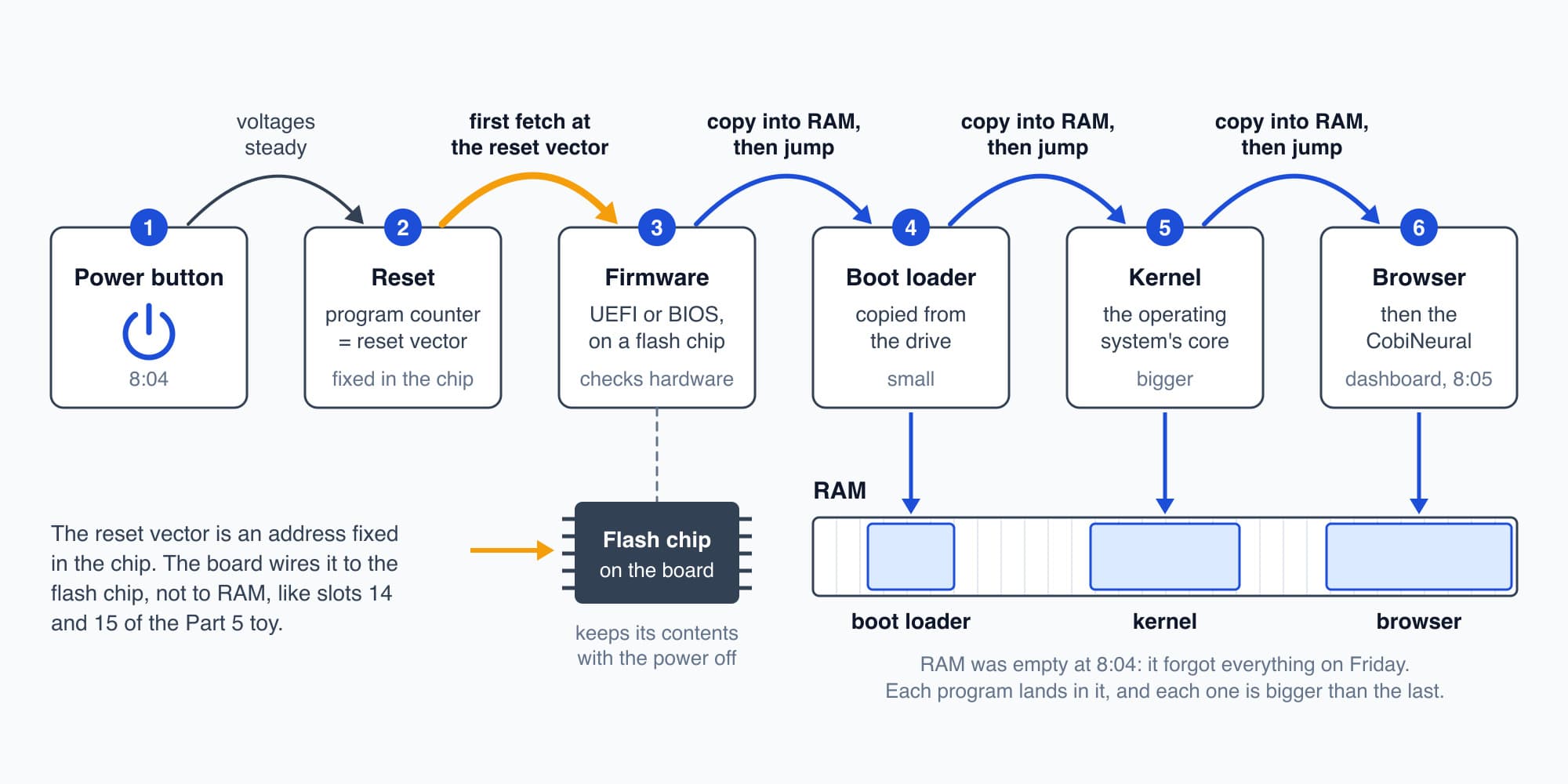
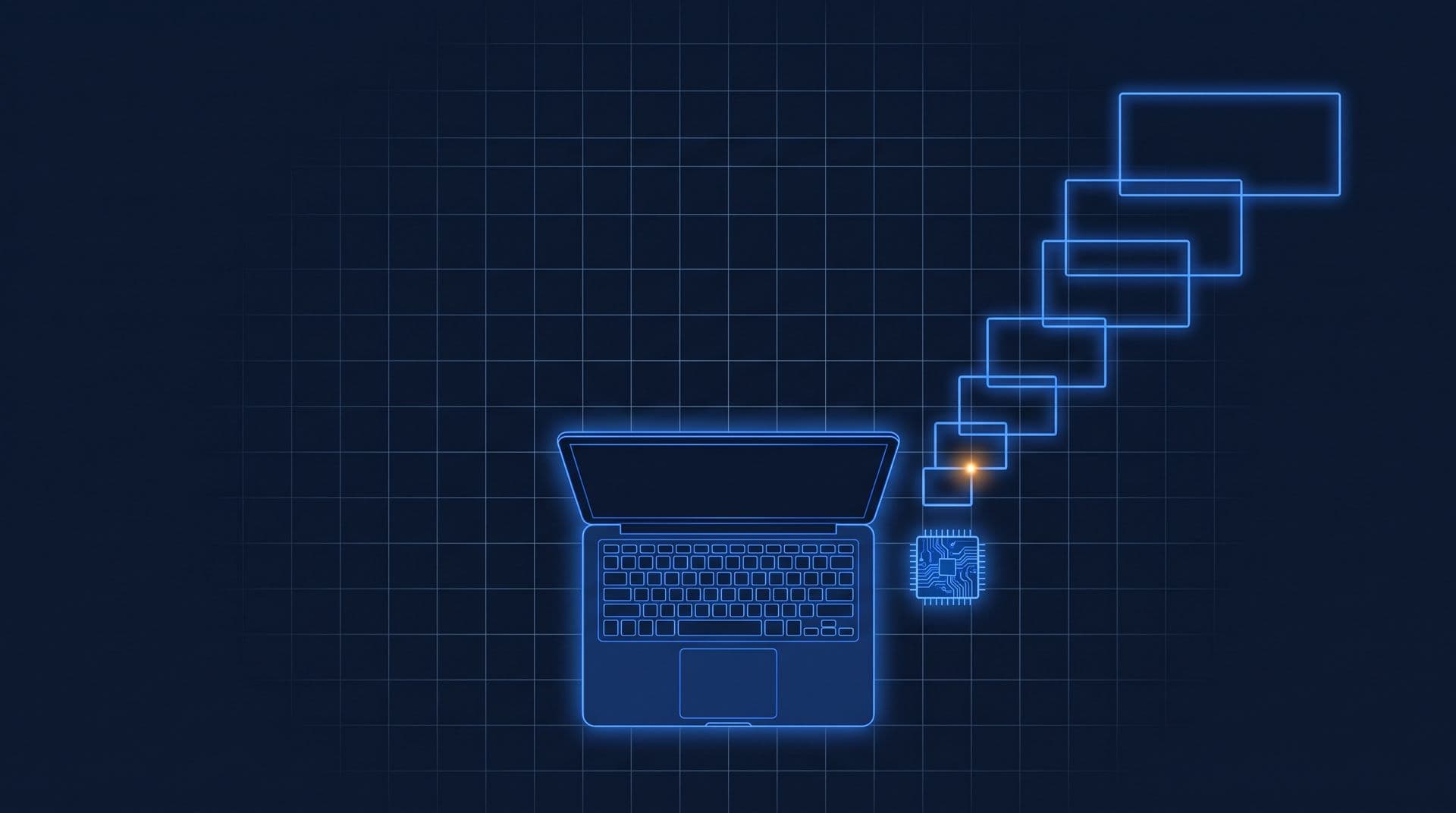
Each program loads a bigger one and jumps to it, from the firmware at the reset vector to the browser.
From code to instructions
So now the operating system is in memory. But where did all its numbers come from? Nobody writes instruction numbers by hand anymore. People write code in a language that's easier to read, and a program called a compiler turns it into the processor's own instructions. Let's take the level 9 damper sequence from Part 5, written the way a person might write it:
`if co2 < 600: damper = 0`
`otherwise: damper = (co2 - 600) / 3`
A compiler for our toy computer would turn those two lines into the list we wrote by hand in Part 5, adding the jump back to the start so that it runs over and over. That's nine instructions, LOAD 15, COMPARE 12, JUMP-IF 7 and so on, which as numbers are 31, 172, 87, 156, 189, 46, 64, 27 and 69. A real processor has its own instruction numbers, longer than our toy's, but the compiler's job is the same.
So two short lines became nine instructions. A web browser is millions of lines of code, so it compiles to a very long list of numbers. That list, saved on the drive as a file along with the data it starts with, is what we call a program.
How an operating system works
So the operating system is basically a program whose job is running other programs. Say the facility manager clicks the browser's icon. The operating system finds the browser's file on the drive, copies its instructions into a free part of RAM, sets aside more memory for the browser to work in, and puts the address of its first instruction into the program counter. From that tick on, the processor is running the browser. It's the same copy-and-jump the boot loader did, and the operating system does it every time we open an app.
Memory for each program
Now we have a problem. The browser, the email app and the operating system all live in the same RAM. If the browser had a bug and wrote to the wrong address, it could scribble over the email app, or over the operating system itself. So how do we keep them apart?
Well, what if no program ever sees a real address at all? The operating system gives each program its own made-up set of addresses, starting from its own zero, and a small circuit beside the processor translates every address on its way to RAM, using a table that only the operating system can change. Those made-up addresses are what we call virtual memory, and the translating circuit is the memory management unit (MMU). So the browser's address 1,000 and the email app's address 1,000 land in two different rows of RAM. And if a program tries an address that isn't its own, the MMU stops the instruction and calls the operating system, which closes that program before it can touch anyone else's memory.
It's also why more RAM lets us keep more open at once, as we saw in Part 4. Each open program needs its own share of real rows.
Time slices
So now several programs sit in memory, each in its own space. But there's only one program counter. How do they all seem to run at once?
Let's say the operating system starts the browser and the browser just keeps going. Nothing else would ever get a turn. So the operating system needs a way to take the processor back, even from a program that never offers it. That's the job of a timer. Beside the processor sits a small counter that counts down and, every few milliseconds, puts a signal on a wire into the processor. When the signal arrives, the processor finishes the instruction it's on, saves its program counter, and jumps to a fixed address where the operating system's code is waiting. A signal like that is what we call an interrupt.
Now the operating system has the processor. It copies the browser's registers and program counter into memory, so the browser can carry on later exactly where it stopped. It picks the next program that has work to do, loads that program's saved registers, and jumps back into it. Each turn is a time slice, and the swap from one program to the next is a context switch.
Let's put numbers on it. Say the operating system switches about every 4 ms (illustrative), so 250 times a second. At 3 billion ticks a second, one slice is
$$3{,}000{,}000{,}000 \times 0.004 = 12{,}000{,}000 \ \text{ticks}$$
So every turn is millions of steps, plenty to get real work done, and the swaps come so often that to us everything looks like it's running at the same time.
Now, I used to picture twenty open apps fighting over the processor all day. But most of them have nothing to do. The email app is waiting for a message, and the document is waiting for a key. A program that's waiting tells the operating system so, and it gets no turns at all until its key, packet or timer arrives. So on a normal morning the processor is shared among the few programs that are actually busy, and it spends a lot of its time idle.
Not responding
So what does "Not responding" really mean? Every app with a window has a queue of messages from the operating system (a click here, a key there, a request to redraw), and the app's main loop is meant to come back every so often and take the next one. If the app gets stuck on one long job, like opening a huge file, or on a bug that loops forever, it stops collecting its messages. After a few seconds of an untouched queue, the operating system greys the window out and labels it "Not responding".
But the processor isn't frozen. The timer interrupt keeps firing and the other programs keep getting their slices, which is why we can still move the pointer and close the stuck app.
Several cores
There's one more step. A laptop chip today holds several complete processors side by side, each with its own program counter, registers and ALU, and we call each one a core. With four cores, four programs can truly run at the same instant, and the operating system hands out slices across all of them.
Two cores don't make a single program twice as fast, though. That only happens if the program is written to split its work into pieces that can run side by side. We'll see that idea taken much further in Part 7.
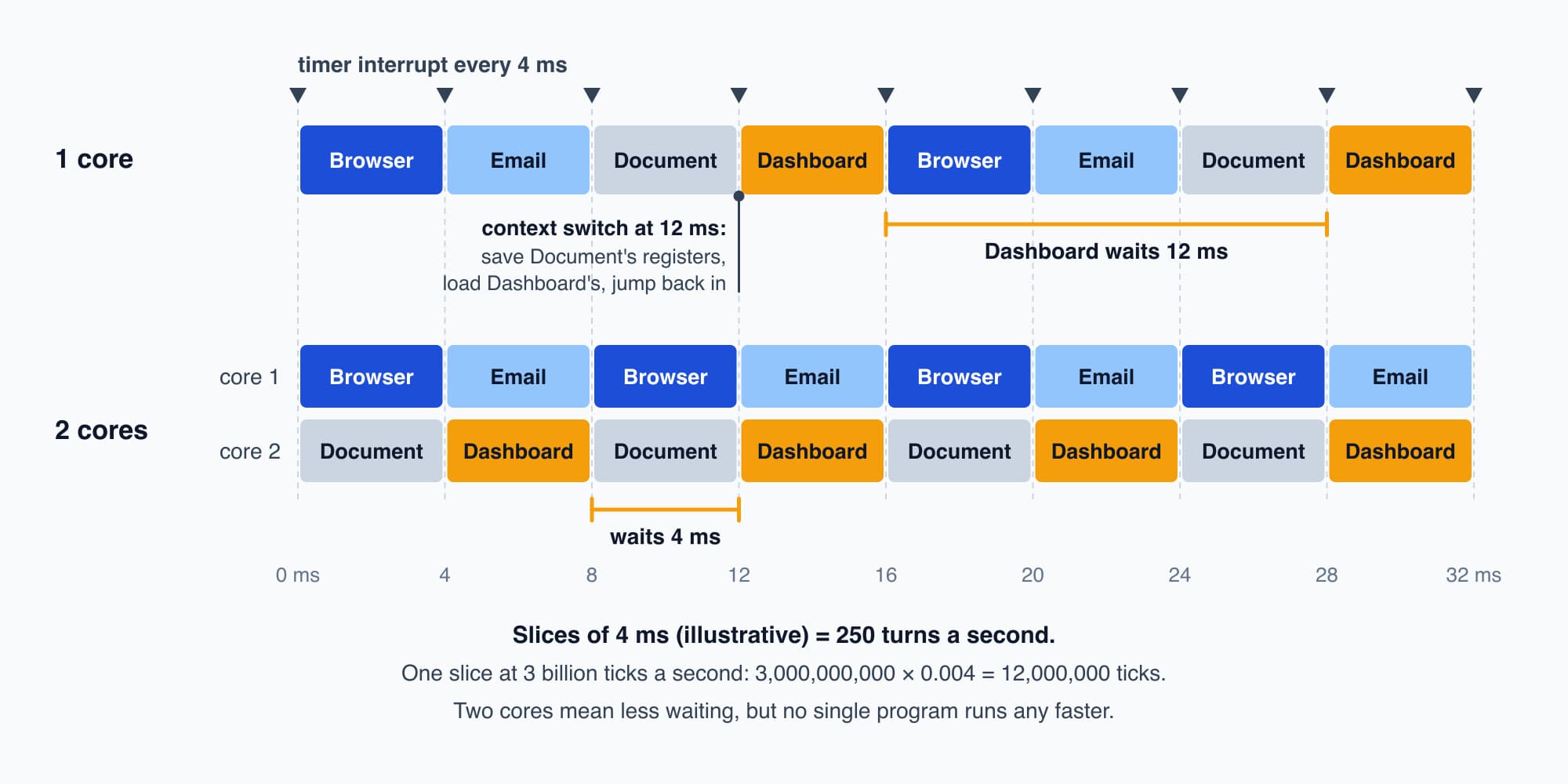
A timer interrupt every 4 ms hands the core to the next busy program, and with two cores each one waits 4 ms instead of 12.
Try it. Four busy programs share one core, taking turns in 4 ms slices. How long does each program wait between its turns, and what share of the processor does it get? What changes with two cores?
Show the worked answer
On one core, each program runs for 4 ms and then waits while the other three take theirs, so it waits 3 × 4 = 12 ms. It gets 4 ms out of every 16 ms, which is a quarter of the processor, or 62.5 turns a second.
With two cores, two programs run at once, and each core is shared between two of them. So each program runs for 4 ms, waits 4 ms, and gets half a core. No single program got any faster. There's just less waiting.
The laptop at 8:05
So let's run the whole morning in order (the steps are real, the timing is illustrative). At 8:04 the facility manager presses the button. The processor comes out of reset at its reset vector, in the firmware. The firmware checks the hardware and loads the boot loader, and the boot loader loads the kernel. The operating system starts its own helper programs, like the ones that run the Wi-Fi, draw the desktop and watch the battery, and then shows the sign-in screen.
They sign in and open the browser. The operating system loads it into its own virtual memory and starts giving it slices. The browser loads the CobiNeural dashboard page, and the page's code, written in a language called JavaScript, gets turned into instructions by the browser as it goes, then runs inside the browser's slices. By 8:05 there are dozens of programs in memory, most of them small helpers we never see, and only a few of them are busy. The dashboard is one of the busy ones, with its list of alerts and the 2 a.m. CWP-2 alert at the top.
A list of numbers in memory
So the dashboard is running, a program in its own memory getting its share of the processor. But everything it has done so far is numbers changing in RAM, and nobody can look at RAM. So how does a list of numbers become something we can actually see? That's Part 7: The Screen: Pixels, Frames and the GPU.
This is Part 6 of 13 in Cobler's How a Computer Works course. Previous: The Processor: Fetch, Decode, Execute. Next: The Screen: Pixels, Frames and the GPU.
Cobler builds CobiNeural, the dashboard in this story, which runs in an ordinary web browser and shows a building's alerts and readings as they come in. To see it on your own site, request a demo.
FAQ
Frequently asked questions
Ask us about this topic
Something in this article you want to dig into — or a situation in your own building it doesn't quite cover? Send us your question. We don't run public comments; the team replies to you directly by email.