Blog
Clicks and Key Presses
How does a laptop know you tapped a button? Part 8 follows one tap: a keyboard's scanned grid of switches, a trackpad's movement counts, USB polling and interrupts, a pointer sum, and four subtractions that decide whether the click landed on the button.
 Tan Kok XinHow a Computer Works
Part 8 of 13 in Cobler's How a Computer Works course. New here? Start with the course map.
At 8:05 the facility manager slides a finger a few millimetres across the laptop's trackpad, the pointer nudges onto the alert's Open button, and they tap. The alert opens. It feels instant, and it's over in a fraction of a second, but a lot happens in between, and at no point does the computer "see" the finger.
In Part 7 we found that to the processor the screen is just memory, so drawing anything means writing numbers into the framebuffer. But that only goes one way, from the computer out to us. So how does a computer know where you click? Well, let's start with something a little simpler, a key press.
The keyboard
Under every key there's a switch, the same switch we started the course with in Part 1. A laptop keyboard has around 80 keys, but it doesn't run 80 wires to the processor. Instead the switches sit at the crossings of a grid of rows and columns. A grid of 8 rows by 16 columns covers 128 keys with only 24 wires (illustrative).
So how does the keyboard know which key is down? A small microcontroller inside it scans the grid. It puts a voltage on row 1 and reads all 16 columns, and any column that sees the voltage has a pressed key in row 1. Then it does row 2, then row 3, round and round, hundreds of times a second (illustrative). When it finds a switch that's newly closed, it knows the row and the column, so it knows the key, and it turns that into a key number, which we call a scan code.
Now this surprised me. The keyboard doesn't send 65 for A. Over USB, it sends key number 4, which just means "the key in the A position". It's the operating system that turns that into a letter, using whichever keyboard layout you've chosen, and only then does an app get the 65 from Part 1. That's how the same keyboard can type French or Thai after a change in the settings.
The mouse and the trackpad
A mouse has the same kind of job, with one twist. It has no idea where the pointer is. A tiny camera underneath takes thousands of pictures a second of the desk and works out how far the surface slid between pictures. So all the mouse ever reports is how many steps it moved across, how many down, and which buttons are pressed.
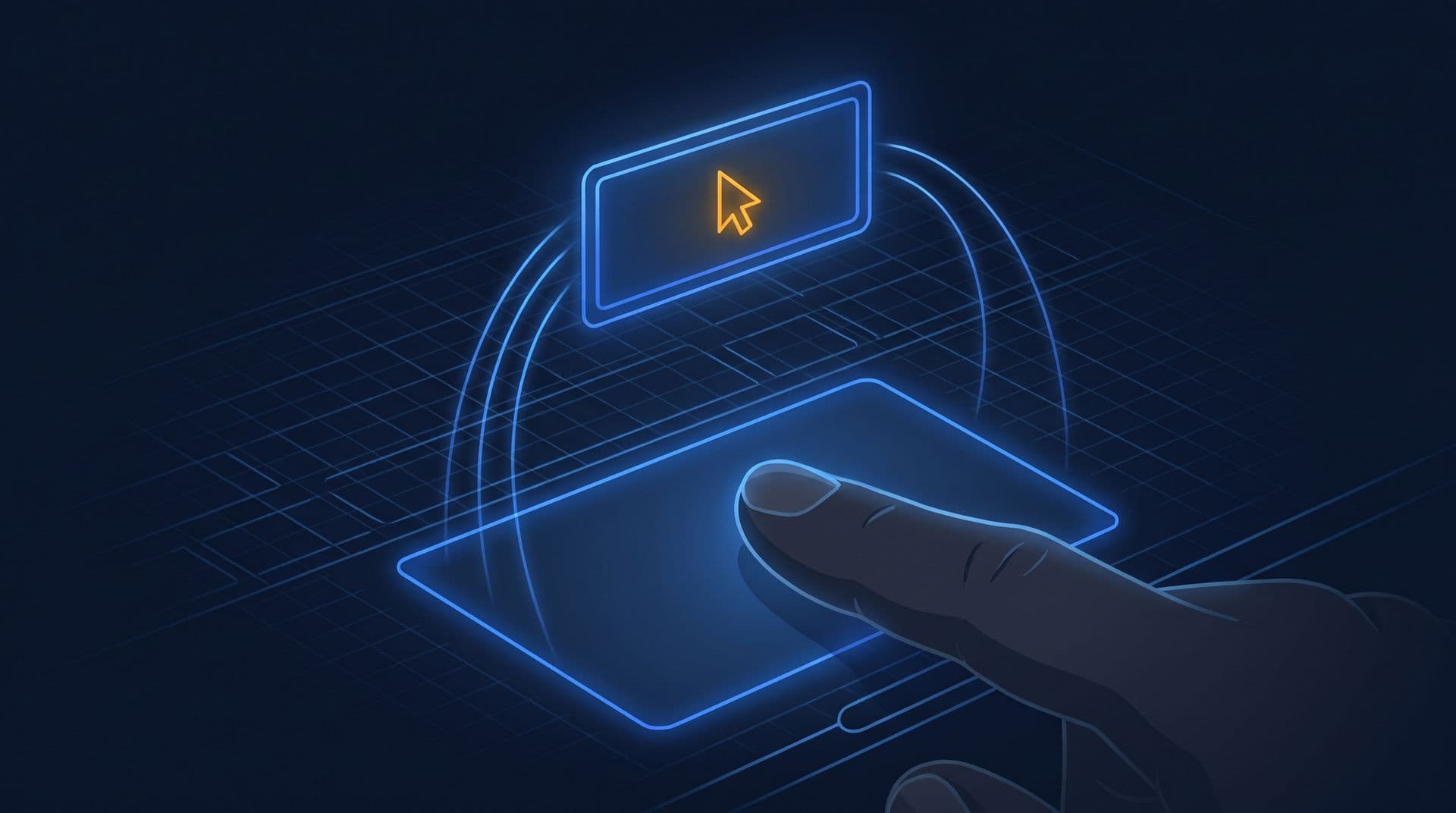
A trackpad does the same job another way. Under its surface sits a grid of sensing wires, and a finger nearby changes the small electric field between them (its capacitance), so the trackpad's chip can tell where the finger is many times a second. From the change between one report and the next, the trackpad or the operating system works out how many steps the pointer should move. A tap is reported as a click.
Polling and interrupts
So how do those few numbers get into the computer? For a USB mouse, the computer's USB controller asks the mouse for news on a fixed schedule, often 125 times a second for an ordinary mouse, so every 8 ms. If you've read Electricity Part 22, that's the same idea as Modbus, where a device never speaks until it's asked. A laptop's built-in keyboard and trackpad usually talk over a similar small link inside the case.
If the mouse has moved, its reply carries the numbers, and the USB controller writes them into a spot in RAM that the operating system set aside for it. Then it raises an interrupt, the same kind of signal the timer used in Part 6. The processor finishes its instruction, saves its place, and jumps to the operating system's code for the mouse.
Now notice what the processor actually saw. It never touched the mouse. A few numbers simply turned up at an address in memory, and a wire said "look now". That's slot 15 of the toy in Part 5, where the CO2 sensor's reading just showed up as a number. And in Part 7 the screen was slot 14, the damper output, grown to six million bytes. So now we've seen the memory-mapped input and output from Part 5 working both ways on a real laptop, and this is the idea the whole course has been heading for. To the processor, the outside world is more memory. The keyboard, the mouse, the screen, the drive and the network are all just addresses it reads from and writes to.
Moving the pointer
So the operating system's mouse code has its numbers, say 12 steps right and none down. It scales them for the pointer speed setting (and speeds the pointer up a little when the finger moves fast), then adds them to where the pointer was. The pointer was at 640 across, so
$$640 + 12 = 652$$
That's the adder from Part 3 doing its most ordinary job.
Then the pointer has to move on the screen. On most computers the pointer is a small separate picture that the display controller lays over the framebuffer as it sweeps. So moving it is just writing 652 and 55 into two of the display controller's registers, and nothing else on the screen is redrawn at all.
How a computer knows where you click
Now the tap. The trackpad reports "button down" the same way it reported the movement, in the same kind of report and with the same interrupt. So the operating system knows a click has happened, and it knows the pointer is at 652 across and 55 down. But which app was it for?
Well, the screen is a stack of windows, each one a rectangle the operating system keeps track of, with where its corners are and which is on top. So it starts from the top window and asks each one in turn whether 652, 55 falls inside it. The first window that says yes gets the click, and here that's the browser. (To keep the sums simple, we'll say the browser fills the screen, so its numbers match the screen's.)
The browser's page is made of boxes too, one for every button, label and chart, and it knows where each box sits. The alert's Open button covers 600 to 700 across and 40 to 70 down. So is the click inside it? That's four questions, and each one is a subtraction:
Question | Subtraction | Answer | Top bit |
|---|---|---|---|
Right of the left edge? | 652 − 600 | 52 | 0, so yes |
Left of the right edge? | 700 − 652 | 48 | 0, so yes |
Below the top edge? | 55 − 40 | 15 | 0, so yes |
Above the bottom edge? | 70 − 55 | 15 | 0, so yes |
In Part 3 we saw that the top bit of a subtraction's answer is 1 when the result is below zero. Here all four come back 0, so all four answers are yes, and the click is on the button. We call this a hit test. If even one had come back 1, the browser would move on and test the next box. With all four yes, the jump from Part 5 does the rest, and the processor jumps to the instructions the dashboard's makers attached to the Open button.
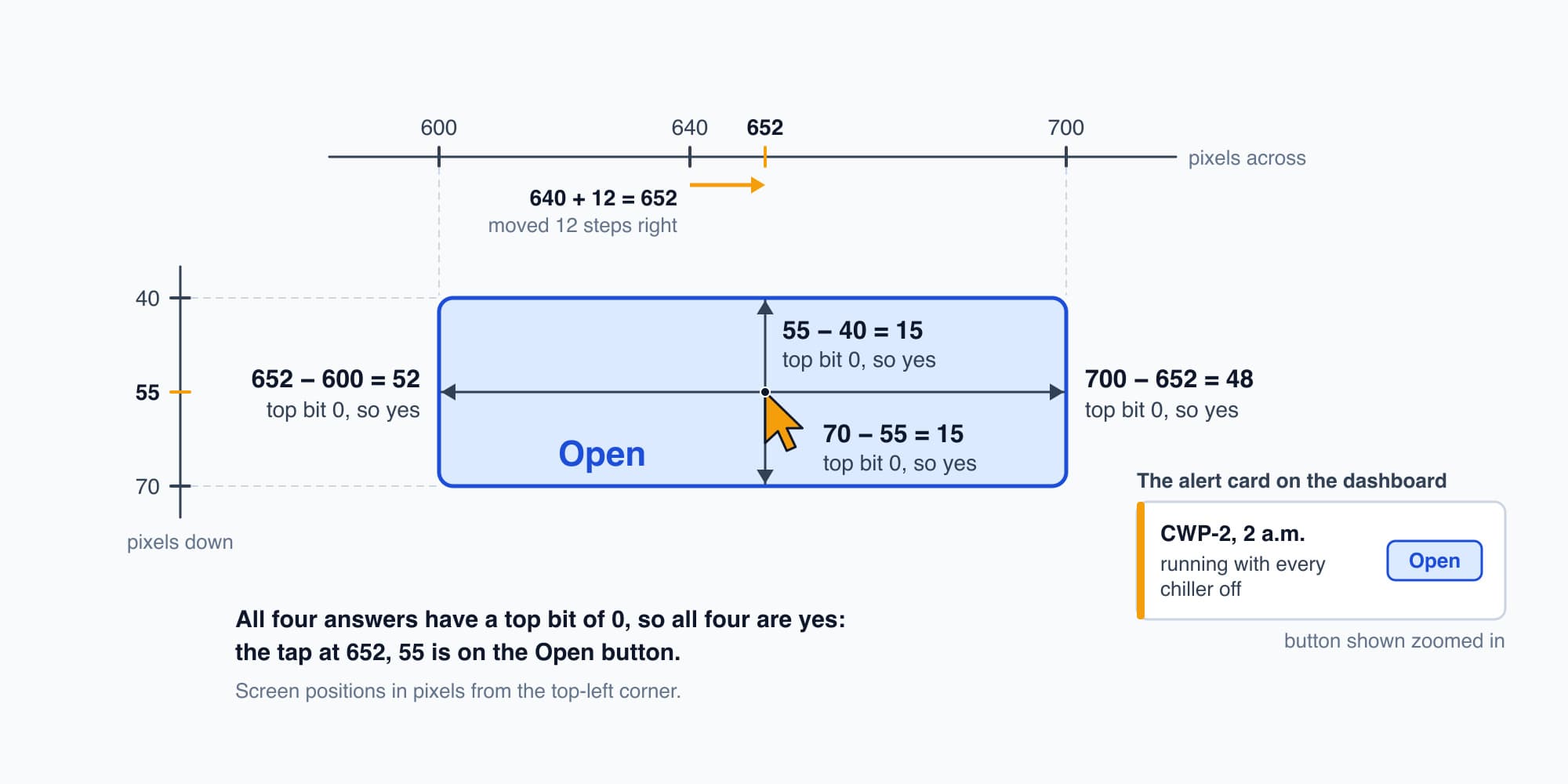
Four subtractions, four top bits of 0, so the tap is on the Open button.
Redrawing what changed
Those instructions do two things. They ask the cloud for the alert's chart data (we'll follow that request in Part 10), and they change the page, so the button looks pressed and a panel opens for the chart. Now the browser could redraw all 2 million pixels, but it doesn't need to. It keeps track of which boxes changed, redraws only the pixels inside them, and the GPU from Part 7 puts the new frame together. On the next sweep of the display controller, the panel is there.
Typing a letter is the same trip with a different ending. The key number arrives through the same poll and interrupt, the operating system turns 4 into 65 and hands it to whichever app has the blinking cursor, the app stores 65, and then it draws the letter's pixels just as we did in Part 7.
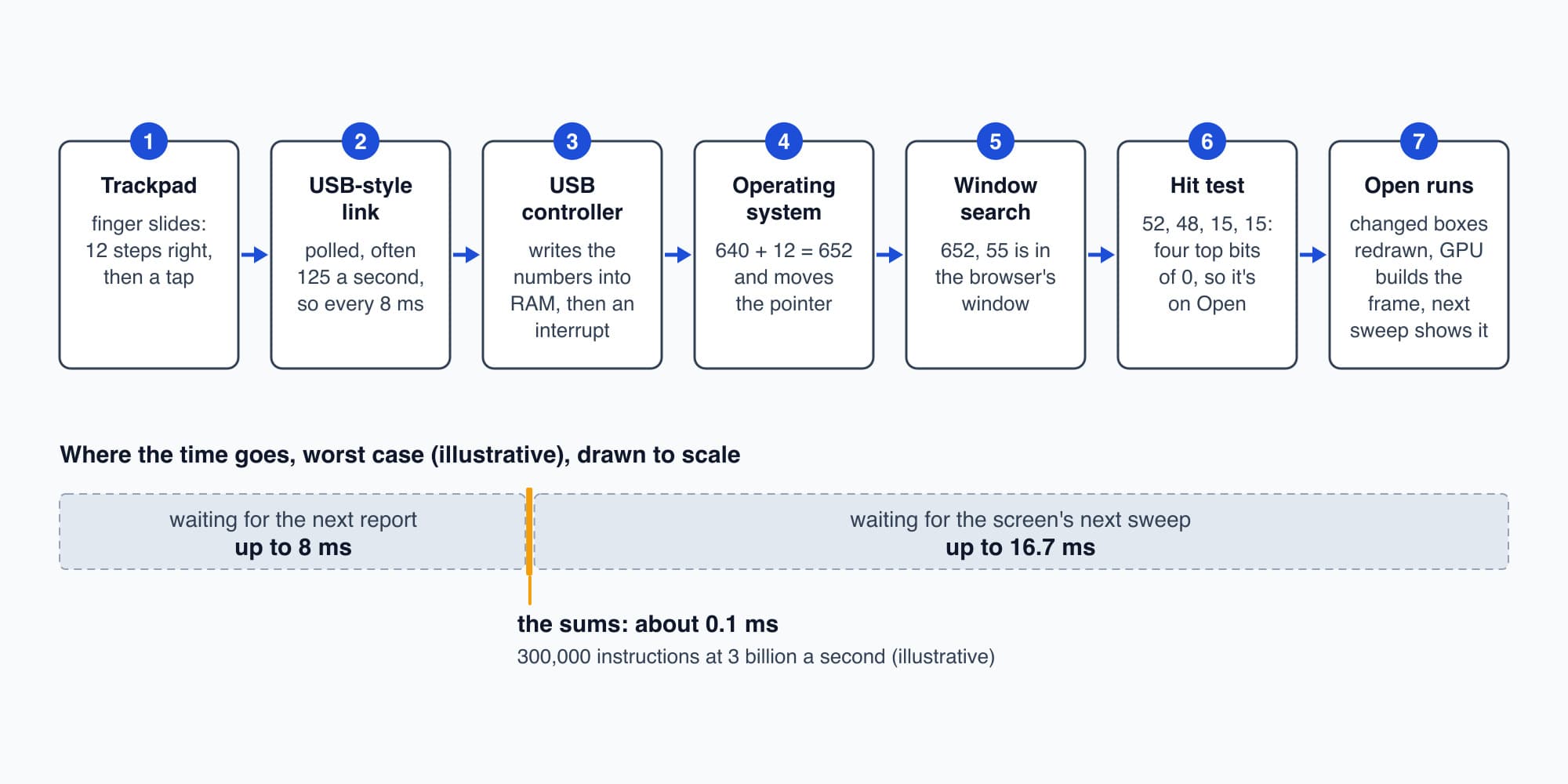
The sums take a tenth of a millisecond, and most of the delay is waiting to listen and waiting to show.
A few hundred thousand instructions
So let's add it all up. Between the trackpad and the redrawn panel, the processor ran the interrupt code, the pointer sum, the window search, the hit test, the button's own code and the redraw. All told that's something like a few hundred thousand instructions, say 300,000 (illustrative). At 3 billion a second:
$$\frac{300{,}000}{3{,}000{,}000{,}000} = 0.0001 \ \text{s} = 0.1 \ \text{ms}$$
That's a tenth of a millisecond for thousands of sums, comparisons and jumps. And honestly, the computing is the quick part. If the trackpad reports 125 times a second, its next report might be up to 8 ms away, and the screen's next sweep might be up to 16.7 ms away. So most of the time between a tap and the change we see is the computer waiting, either for its next chance to listen or for its next chance to show.
Try it. The pointer is at 652 across and 55 down. The finger slides further, and the pointer moves 60 steps right. If the facility manager taps now, is the click still on Open? Which subtraction gives it away?
Show the worked answer
The new position is 652 + 60 = 712 across, and the height is still 55. So the four subtractions are 712 − 600 = 112, 700 − 712 = −12, 55 − 40 = 15 and 70 − 55 = 15.
The second one is below zero, so its top bit is 1, and the answer to "left of the right edge?" is no. The click has missed the button, so the browser moves on and tests the next box on the page, which might just be empty background.
The tap on the CWP-2 alert
So let's put the facility manager's tap together (the timing is illustrative). At 8:05 their finger slides, and the trackpad's chip turns the slide into 12 steps right. The next report carries that into RAM, and an interrupt hands it to the operating system, which works out 640 + 12 = 652 and writes the new pointer position into the display controller. The finger taps. The window search finds the browser, the browser's four subtractions come back 52, 48, 15 and 15, and the Open button's code runs. About a tenth of a millisecond of sums later the panel is drawn, and within a sweep or two of the screen it's in front of their eyes.
Somewhere else
But look at what the panel is waiting for. It's about to show a chart of Sunday night's power, and the readings for it aren't on the laptop. Next the facility manager will open the building's CCTV app on the same laptop, to see the plant room at 2 a.m., and that clip isn't on the laptop either. The night's readings are in the cloud, and the clip is on the CCTV recorder in the security room. Both had to be kept somewhere that holds on to numbers when the power goes off, because RAM forgets (Part 4). So where are they kept, and how does a drive hold a file for weeks? That's Part 9: Storage: How a Drive Keeps Files.
This is Part 8 of 13 in Cobler's How a Computer Works course. Previous: The Screen: Pixels, Frames and the GPU. Next: Storage: How a Drive Keeps Files.
Cobler builds CobiNeural, where an alert like CWP-2's opens with one tap to the readings behind it. To see it on your own building, request a demo.
FAQ
Frequently asked questions
Ask us about this topic
Something in this article you want to dig into — or a situation in your own building it doesn't quite cover? Send us your question. We don't run public comments; the team replies to you directly by email.